
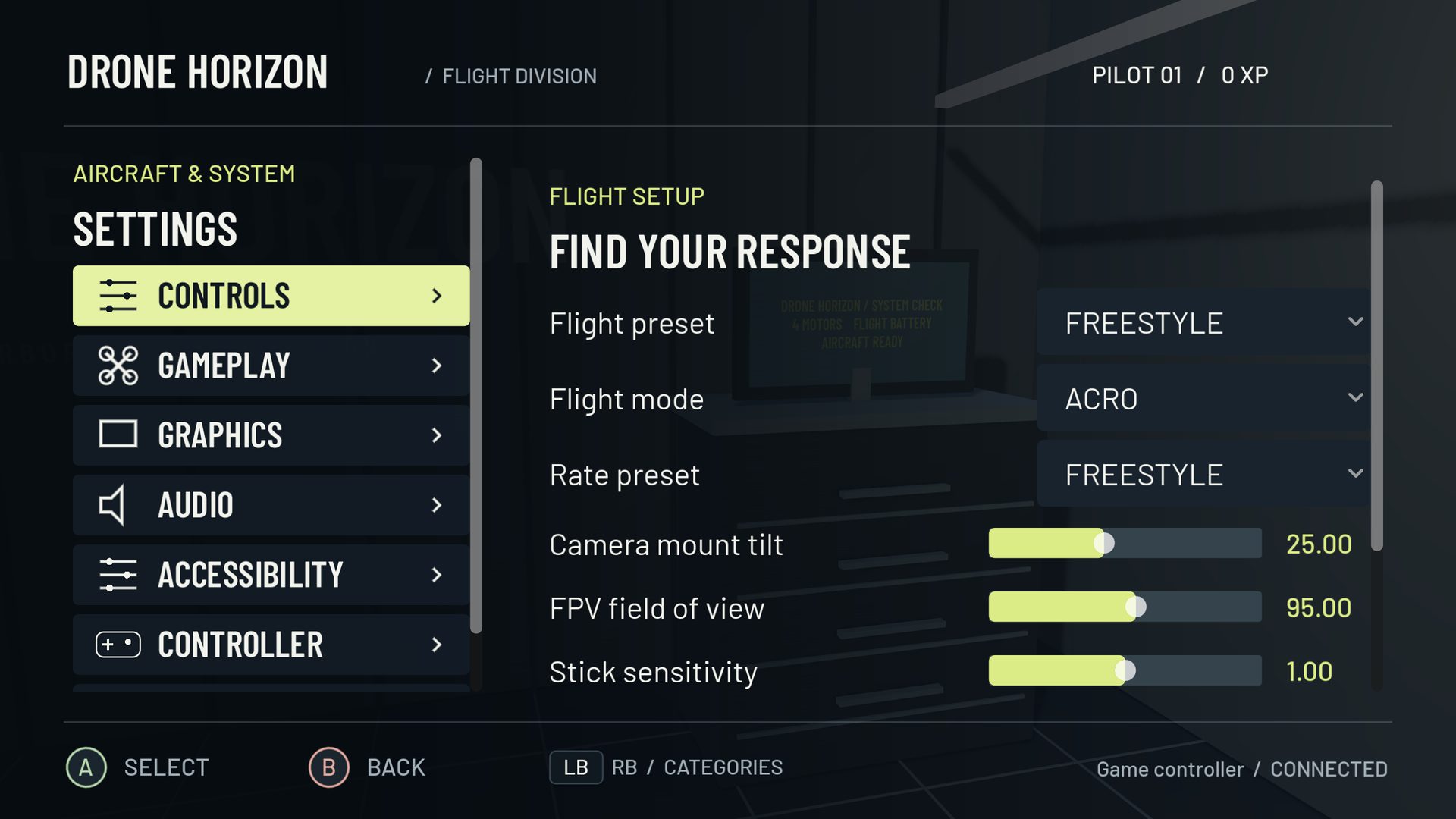
Start with detection, then mapping
A reliable simulator controller setup has a clear sequence: connect the device, confirm its identity, inspect raw movement, assign commands, calibrate travel and test actions. Rates and expo come afterward. A controller that appears in a USB list is not automatically ready to fly.
Use Controller Setup for the in-game sequence. Use the compatibility table to check what is implemented, what is experimental and what still needs hardware acceptance. The browser demo on the controller page can inspect browser input, but it does not certify a native build.
Choose the guide that matches the problem
| Your question | Start here |
|---|---|
| I have a gamepad but no flight mapping | Gamepad setup |
| Sticks drift or miss part of their travel | Dead zones and calibration |
| The device never appears | Detection troubleshooting |
| My radio layout differs from a tutorial | Modes 1–4 |
| I want to practice with my real transmitter | Radio vs gamepad |
| I own a DJI remote | Model-specific compatibility |
Keep three kinds of configuration separate
Hardware mapping assigns reported axes and buttons. Stick mode arranges throttle, yaw, pitch and roll across two sticks. Flight mode decides what those commands mean to the aircraft. Changing one does not automatically establish the others.
Drone Horizon's current stick choices are Mode 1, Mode 2, Mode 3 and Custom. Its flight families include manual modes and a separate stabilized camera-drone style. A conventional Mode 4 layout can be created through Custom, while DJI-style flight can use any supported input path; neither fact certifies a particular device.
Platform and transport matter
USB and Bluetooth can expose different identifiers or mappings. Android has its own native capability handling alongside engine input. Apple/MFi acceptance remains pending in the current project record. The priority DJI FPV Remote Controller 2 PC/USB-C combination has not been physically verified in that record.
Before spending time on response tuning, verify the exact device, operating system and connection. Save a named baseline and repeat a grounded check after reconnecting. If you later move from a spring-centered gamepad to a non-centering radio throttle, expect a mechanical adjustment even with the same conceptual layout.
Practice after setup
Once all four channels are smooth and independent, make a gentle takeoff, broad circuit and landing in the simulator. Bind and test arm/disarm, reset and the actions you need. Then use the controls learning path to connect the verified input to actual flight technique.