
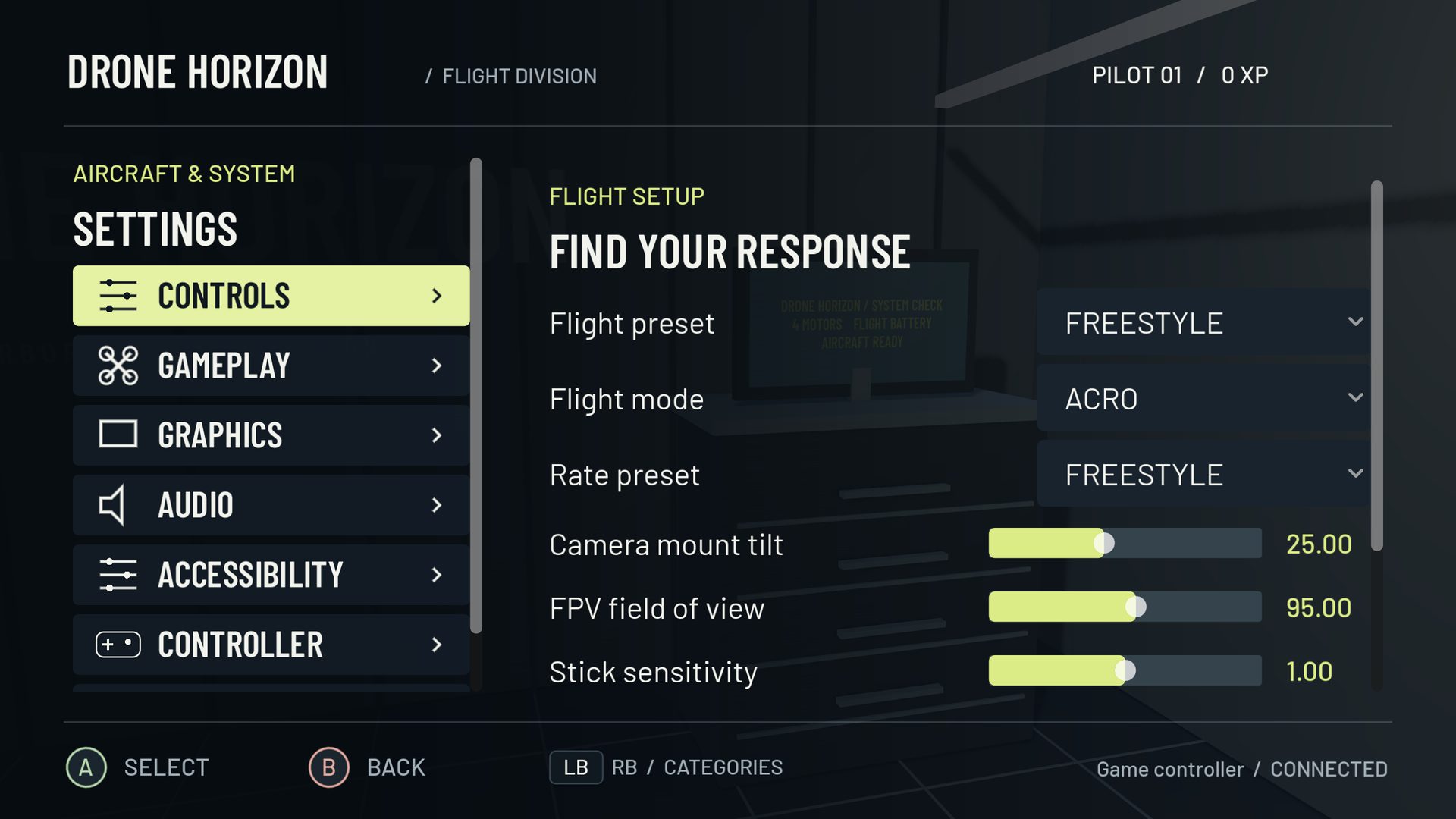
If a controller does not work in a drone simulator, find the first layer where its input disappears: connection, operating-system recognition, simulator detection, raw values or flight mapping. Changing rates cannot repair a device that never sends an axis.
Keep the simulated aircraft grounded and disarmed while testing. Record the exact controller model, connection and platform so you can reproduce the result instead of relying on “it is a USB controller.”
1. Check the physical connection and device mode
Try a known data-capable cable and a direct port. A powered device may still be using a charge-only cable. On a radio, select its documented joystick/HID mode where available; storage and firmware modes serve different purposes.
For Bluetooth, confirm the intended controller profile is paired and active. A device may expose different behavior in PC and mobile modes. Changing transport can also change the identity the simulator uses for a saved profile.
2. Confirm operating-system input
Use the operating system's controller facilities where available to inspect movement. Device enumeration proves that something connected, but not that it exposes four flight axes. A touch-emulation accessory, keyboard adapter or USB storage interface can appear without being a joystick.
The Godot controller documentation describes platform-dependent input handling. Drone Horizon also has an Android native capability path; that does not make every HID descriptor a usable gamepad.
3. Compare the simulator's name and raw values
If the OS sees movement but the simulator does not, check its selected device and any duplicate or virtual controller entries. Temporarily simplify remapping software so one physical action does not arrive through two paths.
In Drone Horizon's hardware panel, inspect raw axis and button slots. The panel exposes what the backend supplies; a large number of visible slots does not mean the device physically has that many controls. Move one stick at a time and identify the changing channels.
| Observation | Next investigation |
|---|---|
| Device absent everywhere | Cable, port, power, pairing or device mode |
| Device listed, no joystick axes | Interface capabilities; possibly not a gamepad |
| Raw axes work, drone does not | Binding, active input source, arming and calibration |
| One action happens twice | Duplicate device paths or remapping layers |
| Wrong profile after reconnect | Device identity and saved-profile selection |
4. Test the final commands
Once raw input works, check throttle, yaw, pitch and roll individually. Verify neutral, both endpoints and direction. Bind essential actions separately. A correct raw display with reversed flight movement is a mapping problem, not failed detection.
If the controller disconnects during flight, confirm that the simulator clears held commands and handles the session safely. Save the profile and test a reconnect while grounded before continuing a long practice session.
5. Treat the browser as a separate diagnostic
A browser Gamepad API demo may require you to focus the page and press a controller button before the device appears. It can show what the browser receives, but native software may use a different backend. Passing one does not automatically certify the other.
For DJI hardware, use the model-specific compatibility explanation. A USB name containing DJI is not evidence of usable sticks. A helpful problem report includes the raw movement that was observed, the exact transport and the stage that failed—not just a photo of a connected cable.