
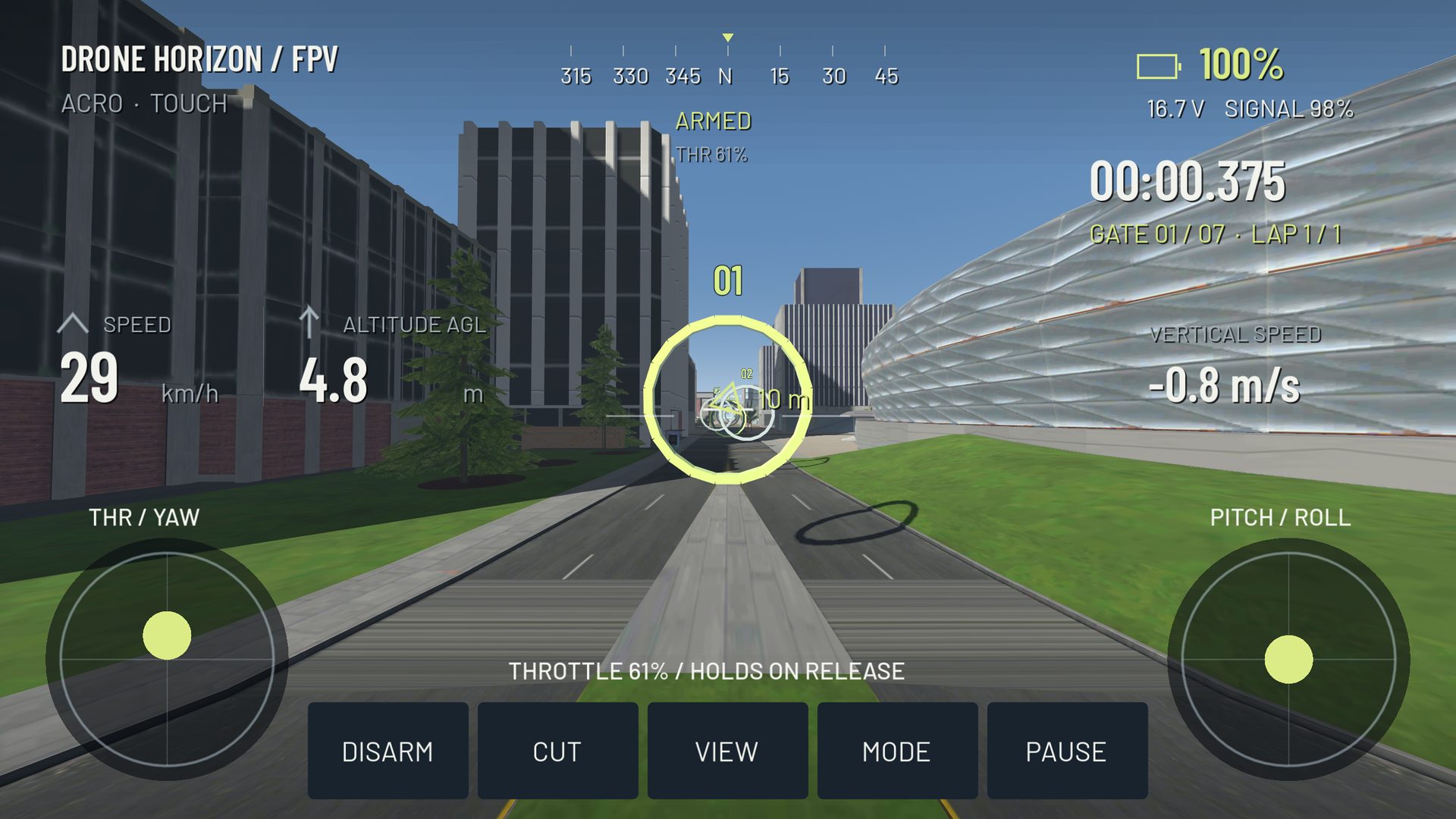
Touchscreen drone controls can provide continuous flight input, but your fingers lack the physical center and travel stops of a real stick. A useful mobile layout therefore needs clear axis feedback, predictable release behavior and enough space for both thumbs without hiding the route.
Before changing sensitivity, identify what each virtual stick controls. Then determine whether the throttle stays where you leave it or returns to a center position. That one behavior can radically change a first takeoff.
Manual throttle is not a direction button
Drone Horizon's normal manual touch controls retain throttle when the thumb lifts. Pitch, roll and yaw normally return toward their neutral positions. The custom profile system can change centering behavior, and the DJI-style stabilized family uses different vertical-control semantics.
Test the active layout while grounded. Drag throttle a little, lift your thumb and observe the display. Do not assume a website's illustrative virtual-stick demo uses the same release convention as the native simulator.
Arrange controls around a clear flight view
Place the sticks where your thumbs can rest without stretching. Keep the center of the route visible and put reset or arm controls where you can reach them deliberately. A control that is visually attractive but repeatedly hidden beneath your hand is not a useful layout.
The project includes a touch layout editor for stick and toolbar positions and custom control profiles. Make a small layout change, then test with both hands. Rotating the device or changing screen size can alter reach and visibility even if the axis assignments remain the same.
Practice one thumb at a time first
Begin with gentle collective changes and a stable outside view in the simulator. Next add short heading changes, then pitch and roll in a clear area. Watch for accidental diagonal motion: dragging a thumb upward can also introduce yaw or roll if the intended path is not straight.
Once individual inputs are predictable, fly a wide rectangle. Judge how consistently you enter and exit each corner. If your thumbs keep returning to the wrong physical place, adjust position or size before making the aircraft more sensitive.
| Mobile difficulty | Useful first response |
|---|---|
| Stick center is hard to find | Revisit layout and visible input feedback |
| Aircraft keeps climbing after release | Inspect throttle retention and flight family |
| Turning accidentally changes pitch | Slow down and watch combined-axis movement |
| Important scenery is hidden | Move controls or choose a clearer practice route |
| Motion becomes uneven | Reduce visual workload and compare the same scene |
When a physical controller helps
A compatible gamepad or joystick-mode radio adds mechanical feedback and can leave more of the screen visible. It also introduces pairing, adapters and mapping considerations. Android recognition, Apple game-controller support and native simulator support are separate checks.
Drone Horizon's compatibility page records implemented paths and validation limits. Do not assume any Bluetooth accessory is a four-axis controller: the project has encountered touch-only HID devices that enumerate without exposing usable gamepad axes.
Keep the training task modest
Short mobile sessions suit repeatable control exercises. Use the same aircraft, map and view while learning a layout. Progress from takeoff and wide turns to a few generous gates rather than beginning with a tight indoor course.
For a structured session, follow the 30-minute practice routine. If you later move to a radio, retain the conceptual stick layout where possible and re-learn the physical throttle feel deliberately.