
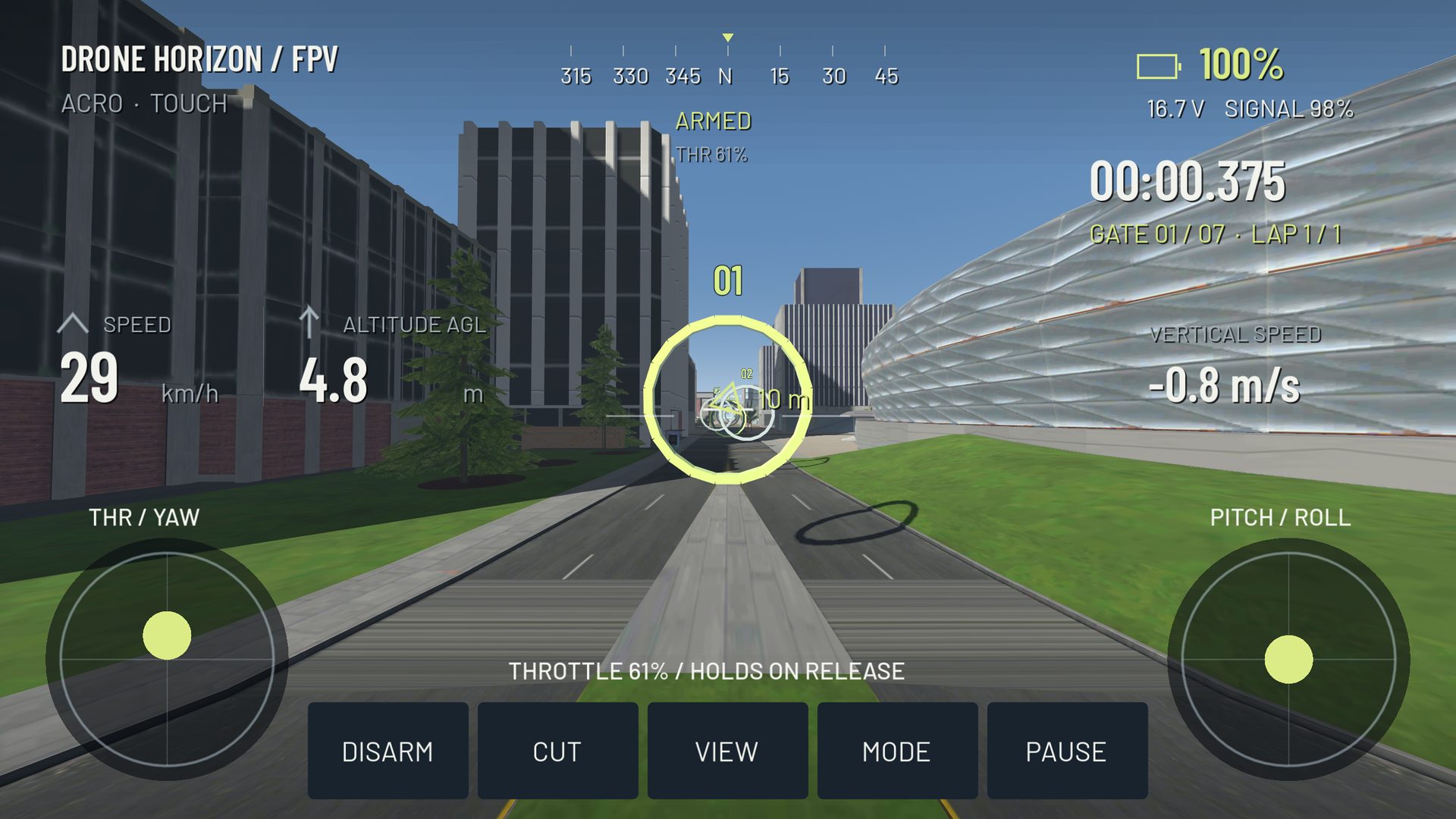
Continuous touch input for flight
Drone Horizon has two-thumb touchscreen controls routed through the shared flight-command layer. Touch input supplies throttle, yaw, pitch and roll rather than a separate simplified drone movement system. On-screen actions provide access to flight and interface functions.
The lack of physical stick stops changes how the controls feel. Practice a small input and watch the response before increasing sensitivity. A visually convenient layout should still leave the route visible between your hands.
Know what happens when your thumb lifts
Normal manual touch throttle retains its position, while the other flight axes return toward neutral. Custom profiles can change centering choices, and DJI-style stabilized vertical control has a different meaning from manual collective.
Inspect the active layout while grounded. Do not assume that releasing a virtual stick disarms the aircraft, or that the website's illustrative controller demo duplicates every release rule of the native game.
Arrange the controls around your grip
The source includes a layout editor for stick and toolbar placement and supports saved custom profiles. Adjust one element and test with both thumbs. Screen orientation, reach and finger occlusion can change the task even with identical axis mappings.
Start in an open offline environment. Progress from takeoff and heading changes to broad turns, then to a few gates. The touchscreen guide explains how to diagnose accidental diagonal input and poor control placement.
Add hardware where the platform supports it
Android has a native controller-capability path alongside the engine's gamepad handling. Supported gamepads or joystick-mode radios can use physical controls, but the device must expose usable input and pass mapping checks. A touch-only HID accessory is not automatically a four-axis controller.
The project includes iOS configuration, but Apple build and MFi acceptance remain pending. A mobile-oriented interface does not establish a tested iPhone release. Use the compatibility record and platform guide for those distinctions.
A mobile practice baseline
Save one usable layout, one aircraft and a comfortable camera view. Keep graphics settings at a level that gives responsive movement on your device. Physics precision and display frame rate are different quantities; choosing a higher simulation setting is not a promise of smoother rendering.
Follow a short, focused routine and make changes based on a specific observed problem. The 30-minute session can be shortened for mobile use while retaining the same warm-up, isolated drill and route comparison.